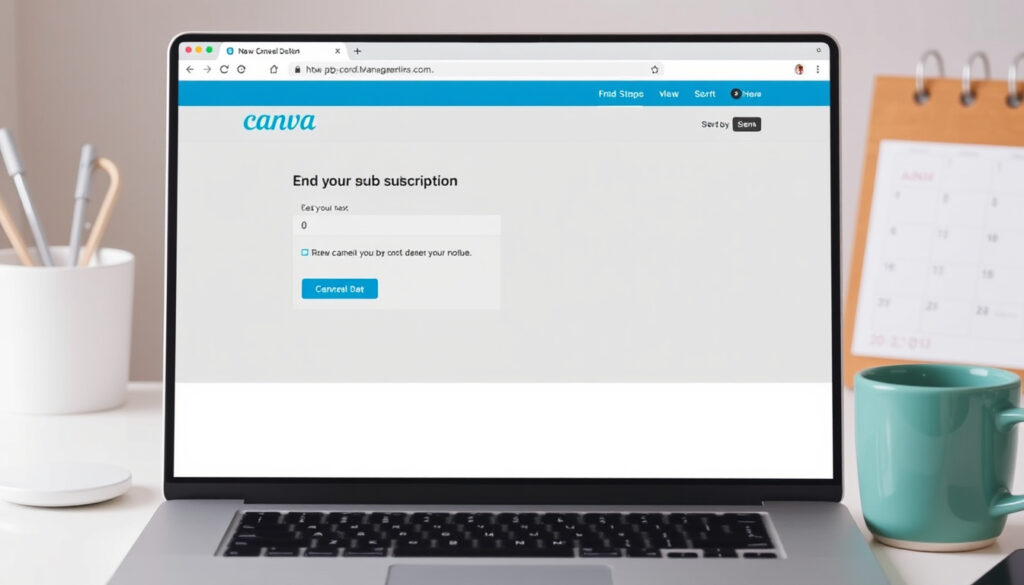
How to Cancel Canva Subscription: Quick 4-Step Guide
You signed up for a Canva Pro trial, designed a few graphics, and now you want to cancel before the first charge hits. But the cancel button isn’t always where you expect it — and that’s frustrating.
Free trial length: 30 days ·
Auto-renewal: On by default ·
Refund window (annual plans): 30 days ·
Cancellation steps: 3–5 depending on platform
Quick snapshot
- Go to Settings > Billing & Plans (Canva Help Center)
- Click Cancel plan (wikiHow guide)
- Confirm cancellation (Canva Help Center)
- Open Settings > Apple ID > Subscriptions (Canva Help Center)
- Tap Canva (wikiHow guide)
- Tap Cancel Subscription (Canva Help Center)
- Open Google Play Store (Canva social guidance)
- Menu > Subscriptions (Canva Help Center)
- Select Canva > Cancel (wikiHow guide)
- Same as Android steps (Canva social guidance)
- Alternatively cancel in Canva app settings (Canva Help Center)
Five facts about Canva subscriptions, one pattern: cancellation requires action on the right platform, not just in Canva.
Canva’s official help center makes clear that cancelling stops future payments but does not automatically issue a refund (Canva Help Center official support).
| Fact | Value |
|---|---|
| Canva monthly active users | 100 million |
| Free trial duration | 30 days |
| Refund policy (annual plans) | 30 days from purchase |
| Cancellation effective | Immediately for monthly, end of billing period for annual |
| Auto-renewal | On by default |
How do I cancel subscriptions to Canva?
Cancel via web browser
- Log in and click your profile icon (wikiHow guide).
- Go to Settings > Billing & Plans (Canva Help Center).
- Click the three-dot menu on your active plan and select Cancel plan (Canva Help Center).
- Follow the prompts to confirm — you may be asked to choose a reason (wikiHow guide).
According to the Canva Help Center official support, this is the official web flow. Community guides from wikiHow community guide confirm the steps and note that Canva asks for confirmation before finalizing. Cancellation takes effect immediately for monthly plans, while annual plans remain active until the end of the billing period.
Cancel via iPhone/iPad
- Open Settings on your iPhone or iPad (Canva Help Center).
- Tap your name, then tap Subscriptions (Canva Help Center).
- Find Canva and tap Cancel Subscription (Canva Help Center).
If you signed up through the Apple App Store, you must cancel through Apple’s subscription system — not the Canva app. According to Canva’s official social guidance X account, App Store subscribers should also request refunds through Apple support. Cancellation alone does not issue a refund; you must submit a separate request through Apple if eligible (Canva Help Center subscription refunds).
The implication: iPhone users who subscribed via Apple must manage both cancellation and refund through Apple’s ecosystem, not Canva’s.
Cancel via Android
- Open the Google Play Store app (Canva social guidance).
- Tap the menu icon and select Subscriptions (Canva Help Center).
- Tap on Canva and choose Cancel subscription (Canva Help Center).
Android users who subscribed through Google Play must manage their subscription in the Play Store. Canva’s social team directs Google Play subscribers to request refunds through Google Play. Alternatively, you can cancel in the Canva app under Settings > Billing & Plans, but always verify in Google Play.
What this means: Android subscribers face the same store-level dependency as iPhone users — the app store controls the billing relationship.
Cancel via Google Play
- Same steps as Android: open Google Play Store > Subscriptions > Canva > Cancel (Canva Help Center).
- If you subscribed via the web, you can also cancel in Canva’s app settings (wikiHow guide).
This method is identical to the Android steps, but it’s worth emphasizing: if you ever used Google Play to purchase Canva Pro, your subscription is tied to that platform. Cancelling inside the Canva app without cancelling in Google Play can lead to continued charges. wikiHow community guide and other community guides stress that mobile-app purchases often require store-level cancellation.
The biggest mistake users make is cancelling in the wrong place. If you subscribed via an app store, that store is the only place you can fully stop the subscription. Web subscribers have a simpler path, but must still act before the renewal date.
Can you cancel Canva before the free trial ends?
Free trial cancellation policy
- Cancel anytime before the 30-day trial ends (Canva Help Center).
- No charge if canceled before the trial expires (Canva Help Center).
Yes, you can cancel your Canva free trial at any time before the 30-day trial period ends. According to Canva’s help center, if you cancel before the trial expires, you will not be charged. The trial is 30 days long, and auto-renewal is enabled by default, meaning you’ll be charged unless you cancel.
What happens after trial ends
- Auto-renewal charges the chosen plan (Canva Help Center).
- Annual plans: refund eligible within 30 days of purchase (Canva Help Center subscription refunds).
- Monthly plans: generally not refundable (ChatSlide AI guide).
Once the trial ends, Canva will automatically charge you for the subscription plan you selected. If you cancel after the trial has ended, you may be charged for the first month or year. Canva’s refund policy states that annual plans are eligible for a refund within 30 days of purchase, but monthly plans are generally not refundable. Some secondary guides suggest contacting support within 14 days of the charge for a possible refund, but this is not guaranteed (ChatSlide AI guide).
Cancelling your trial is easy, but missing the cutoff means you’re on the hook for at least one billing cycle. Monthly subscribers have little recourse; annual subscribers have a 30-day refund window, but only if they act quickly.
How to stop Canva auto payment?
Disable auto-renewal in settings
- Cancelling the subscription is the only way to disable auto-renewal (Canva Help Center).
- There is no separate toggle to turn off auto-renewal without cancelling (Canva Help Center).
Stopping auto-renewal is the same as cancelling your subscription — there is no separate toggle. According to Canva’s help center, cancelling the subscription is the only way to prevent future charges. Once cancelled, auto-renewal is disabled and the plan will not renew.
Remove payment method
- Removing your payment method does not cancel the subscription (Canva Help Center).
- The subscription remains active and may still attempt charges (Canva Help Center).
Removing your payment method from Canva does not cancel your subscription. You can remove it in Settings > Billing & Plans, but the subscription will remain active until cancelled. If you have an active subscription, Canva may still attempt to charge your stored payment method. Canva’s help center advises that cancellation is the only reliable way to stop payments.
Why can’t I cancel my subscription on Canva?
Common reasons for cancellation failure
- Subscription was purchased through an app store (Apple/Google) and must be managed there (Canva social guidance).
- Team plan: only the admin can cancel (Canva Help Center).
- No cancel option visible — check billing method for store origin (Canva Help Center).
Many users report that they cannot find the cancel button or that the option is grayed out. The most common reason: the subscription was purchased through an app store. Canva’s social guidance confirms that mobile-app purchases require store-level cancellation. Another possibility: you may be on a team plan managed by an admin, in which case only the admin can cancel. If you see no cancel option, first check your billing method — if it shows “via Apple” or “via Google”, you need to cancel in that store.
How to contact Canva support
- Go to the Canva Help Center and select “Payments, pricing and billing” (Canva Help Center subscription refunds).
- Provide account email, order ID, and charge date (YouTube walkthrough).
- Attach a receipt or billing screenshot to speed verification (YouTube walkthrough).
If you’ve tried the steps above and still can’t cancel, contact Canva’s support team. Go to the Canva Help Center subscription refunds and select “Payments, pricing and billing” as the issue category. You’ll need to provide your account email, order ID, and charge date. Some YouTube guides recommend attaching a receipt or billing screenshot to speed verification (YouTube walkthrough). Canva’s support team can manually cancel the subscription and may process a refund on a case-by-case basis. Some secondary guides, such as Sparrow blog guide, note that refunds are handled on a case-by-case basis.
If you’re stuck, the culprit is almost always the app store. Don’t waste time in Canva’s settings — check your Apple or Google subscriptions first.
How do I cancel my Canva subscription on iPhone?
Cancel via Apple Subscriptions
- Open Settings > Apple ID > Subscriptions (Canva Help Center).
- Select Canva and tap Cancel Subscription (Canva Help Center).
- Apple handles cancellation and any refund requests (Canva social guidance).
As mentioned, the official way to cancel an iPhone subscription is through Apple’s Subscription settings. Canva’s help center states that cancellation takes effect immediately for monthly plans when done through Apple.
Cancel via Canva app
- Open Canva app, go to Settings > Billing & Plans > Cancel plan (Canva Help Center).
- If subscribed via Apple, this option may not appear or may redirect to Apple settings (wikiHow guide).
You can also cancel within the Canva app itself if you subscribed directly through Canva (not via Apple). According to wikiHow community guide, the Canva app cancellation flow is identical to the web flow. However, if your subscription was purchased through Apple, the in-app option may not appear or may redirect you to Apple’s settings.
iPhone users who subscribed through the App Store must cancel via Apple — not Canva — to avoid charges. Ignoring this distinction is the most common reason for unexpected renewals.
Confirmed facts and what’s unclear
Confirmed facts
- Cancellation via web works and stops future payments (Canva Help Center)
- Free trial can be canceled before charge with no fee (Canva Help Center)
- Annual refunds are possible within 30 days of purchase (Canva Help Center)
What’s unclear
- Exact refund amount for prorated annual plans — policy may vary by region
- Whether cancellation via app store triggers immediate refund or requires separate request
Cancelling a subscription stops future payments but does not automatically issue a refund.
— Canva Help Center, official support
I tried to cancel through the website and it said I had to go through Apple. Then Apple said I had to talk to Canva. I was stuck in a loop for days.
— Reddit user, r/canva
Make sure you have your order ID and charge date ready before contacting support — it speeds things up a lot.
— YouTube tutorial, How to Cancel Canva Pro
Cancelling a Canva subscription is rarely a one-click process, and the refund path depends entirely on where you signed up. For anyone paying for Canva Pro, the choice is clear: cancel through the correct platform (web, Apple, or Google) before the next billing date, or risk losing a month’s payment to a subscription you no longer want.
canva.com, youtube.com, youtube.com, youtube.com, youtube.com, medium.com
Frequently asked questions
How do I find my Canva subscription?
Log in to your Canva account, click your profile icon, go to Settings > Billing & Plans. Your active plan and billing details are listed there.
How do I remove my payment details from Canva?
Go to Settings > Billing & Plans, find the payment method section, and click Remove. This does not cancel your subscription.
Does Canva automatically charge you after a free trial?
Yes, auto-renewal is enabled by default. If you don’t cancel before the trial ends, you’ll be charged for the next billing period.
Why have I been charged?
You were charged because your free trial ended or your subscription renewed. Check your billing history in Settings > Billing & Plans. If you believe the charge was in error, contact Canva support or the app store.
How do I cancel my Canva subscription on Google Play?
Open the Google Play Store app, tap menu > Subscriptions, select Canva, and tap Cancel subscription. You can also request a refund through Google Play if eligible.
How do I cancel my Canva subscription on MacBook?
If you subscribed through the App Store on your Mac, open the App Store app, click your name, go to Subscriptions, and cancel. If you subscribed via the web, follow the web steps.
Related reading
More related posts
 Wisconsin Supreme Court Election – Crawford Wins 2025 Race
 Real Madrid vs Olympique de Marseille Lineups – Predicted XIs, Team News, Injuries
 Citibank Near Me: Branches, ATMs & Ireland Facts
 Is Trump a Felon? Latest Verified Information (2025)
 New York Giants Standings 2024: Record, Playoff Chances & Rivals
 What is Power BI? Guide to Features, Uses & Comparisons
 Inter Miami vs. Whitecaps: 3-1 MLS Cup Final Result