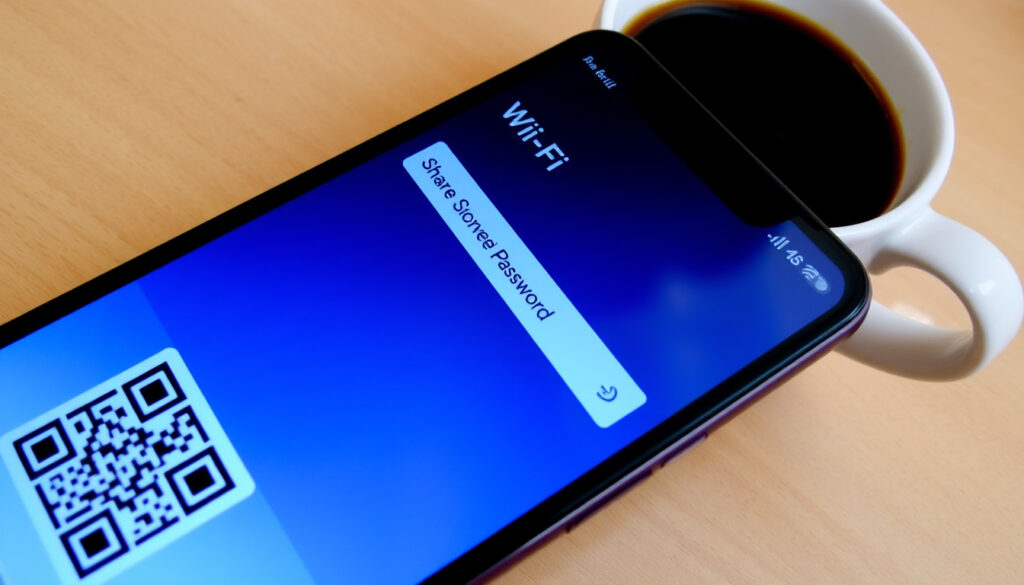
How to Share Your Wi-Fi Password on iPhone (4 Methods)
You’ve got friends over, they ask for the Wi‑Fi, and you’re fumbling for the password. With over 1.5 billion iPhones active worldwide (Statista, 2024), Apple built a native sharing feature into iOS 11 that works seamlessly between Apple devices, and this guide covers every way to share your Wi‑Fi password from an iPhone to any device, plus fixes for when it doesn’t work.
iPhone users worldwide: 1.5 billion (2024, Statista) ·
Feature introduced in: iOS 11 (2017, Apple) ·
Wi‑Fi networks used daily: Over 4 billion (2023, Cisco)
Quick snapshot
- Native sharing works between Apple devices on iOS 11 or later (Apple Support)
- QR code sharing works with any device that can scan a QR code (Apple Support)
- Both devices must have Wi‑Fi and Bluetooth turned on for native sharing (Apple Support)
- Whether sharing via QR code works if the network requires a captive portal login (CNET)
- Introduced in iOS 11 (2017) (Apple)
- QR code generator added in iOS 16 (2022) via Passwords app (Apple Support)
- QR code sharing is expected to become the default cross-platform method (Android Authority)
- Apple may expand the feature to work over iCloud without Bluetooth proximity (Android Authority)
Four key facts at a glance, one pattern: Apple’s native sharing is the fastest between Apple devices, while QR codes offer the widest compatibility.
| Metric | Value |
|---|---|
| Feature introduced | iOS 11 (2017) |
| Maximum devices | No limit |
| Security | End-to-end encrypted |
| Compatibility | Apple devices for native sharing; QR code works with any device |
The implication: Apple’s native sharing is convenient but limited to its ecosystem, while QR codes bridge the gap to any device.
How do I share my Wi‑Fi password on my iPhone?
Share with Apple device
- Make sure your iPhone is unlocked and connected to the Wi‑Fi network (Apple Support).
- Ensure the recipient’s Apple ID email or phone number is saved in your Contacts (Apple Support).
- Both devices must have Wi‑Fi and Bluetooth turned on (Apple Support).
- On the recipient’s device, go to Settings > Wi‑Fi and tap the network name. A “Share Password” prompt appears on your iPhone — tap it (Apple Support).
The catch: If either device has Personal Hotspot enabled, turn it off first — Apple says this can block the sharing prompt (Apple Support).
Share with Android device
- Use the QR code method (see the dedicated section below) or manually copy the password from Settings > Wi‑Fi > tap the network > tap the password field (requires Face ID/Touch ID) (Apple Support).
- Paste the password into a text message, email, or note to share with the Android user (CNET).
Why this matters: Apple’s native sharing doesn’t support Android, so manual copy or QR codes are the only cross-platform options.
Share with laptop
- For a Mac: use native sharing (see next section). For a Windows laptop, copy the password from iPhone and share via email or messaging app (Laptop Mag).
- Alternatively, generate a QR code and let the laptop’s camera scan it — works with Windows 10/11 and macOS (Apple Support).
The trade-off: QR codes are universal but require the recipient to have a camera and QR scanning app (most laptops do).
For iPhone users, native sharing is the fastest within Apple’s ecosystem. Cross-platform guests need a QR code or manual password — plan ahead.
How to share a password between Apple devices?
Requirements
- Both devices signed in to an Apple Account (Apple Support).
- Recipient’s Apple ID in your Contacts (Apple Support).
- Wi‑Fi and Bluetooth enabled on both devices (Apple Support).
- Devices within close proximity (Apple Support).
The pattern: Apple’s security model requires both devices to be physically close and the recipient known to you — a trade-off for safety.
Steps
- On the sharing device, connect to the Wi‑Fi network and unlock the device (Apple Support).
- On the recipient’s device, go to Wi‑Fi settings and select the same network (Apple Support).
- A notification appears on the sharing device: “Share Password” — tap it (Apple Support).
- The recipient’s device connects automatically (Apple Support).
The implication: The process is almost entirely automatic — the only manual step is tapping “Share Password.”
How do I share my Wi‑Fi to another phone?
Share to Android
- Use the QR code method (see below) or manually copy the password from iPhone Settings > Wi‑Fi > tap the network and reveal the password (Apple Support).
- On Android, open Settings > Network & internet > Internet > tap the connected network > Share — then verify identity with PIN, pattern, or fingerprint (Google Support).
- Android generates a QR code that the iPhone can scan (but note: iPhone’s camera can scan QR codes to join a network, so this works both ways).
The trade-off: Both platforms can generate QR codes, but the sharing process is not as seamless as Apple-to-Apple.
Share to another iPhone
- Follow the steps in “Share with Apple device” above — it’s the same process.
Why this matters: For the most common scenario (iPhone to iPhone), the native sharing feature is nearly instant.
How do I share my Wi‑Fi password using a QR code on iPhone?
Generate QR code in Passwords app
- Open the Passwords app on iPhone (requires iOS 16 or later) (Apple Support).
- Tap Wi‑Fi, select the network, then tap the password field to show the QR code (Apple Support).
- The QR code is displayed on screen — the recipient can scan it with any camera (Apple Support).
The pattern: Apple added the QR code generator in iOS 16, making it possible to share with any device without needing the recipient in your Contacts.
Share QR code with any device
- The recipient uses their device’s camera to scan the QR code — on Android, open the camera app and point it at the code; on a laptop, use a QR scanner or built-in camera app (Android Authority).
- No need to share the password text — the QR code contains the network name and password securely (Apple Support).
The implication: QR code sharing is the most universal method — it works with any device that has a camera, regardless of operating system.
QR code sharing may not work if the Wi‑Fi network requires a captive portal login (e.g., hotel or airport). The QR code only stores the network credentials, not the login page.
What this means: While QR code sharing is universal, it may not work with captive portal networks.
Why is my iPhone not sharing the Wi‑Fi password?
Bluetooth or Wi‑Fi off
- Both devices must have Wi‑Fi and Bluetooth enabled. Check Control Center to verify (Apple Support).
Device not unlocked
- The sharing iPhone must be unlocked and connected to the Wi‑Fi network (Apple Support).
Recipient not in Contacts
- Apple requires the recipient’s Apple ID email or phone number to be in your Contacts. If not, the sharing prompt won’t appear (Apple Support).
Network not saved
- The sharing device must have the Wi‑Fi network saved. If you’re using a guest network or a temporary connection, it may not be saved (Apple Support).
Personal Hotspot enabled
- If either device has Personal Hotspot turned on, turn it off before trying to share (Apple Support).
The pattern: Most failures come down to missing prerequisites — Bluetooth, Contacts, or unlocked device. Apple’s troubleshooting guide suggests restarting both devices if the setup animation doesn’t appear (Apple Support).
Confirmed facts
- Native sharing works between Apple devices with iOS 11 or later (Apple Support).
- QR code sharing works with any device that can scan a QR code (Apple Support).
- Both devices must have Wi‑Fi and Bluetooth turned on (Apple Support).
What’s unclear
- Whether sharing via QR code works if the network requires a captive portal login (CNET).
- Exact device count limits for QR code sharing (not documented by Apple).
“Make sure your device is unlocked and connected to Wi‑Fi. When prompted on your device, tap Share Password.”
— Apple Support (official documentation)
“The easiest way to share a Wi‑Fi password from an iPhone to an Android device is to use a QR code. Apple added this feature in iOS 16, and it works with any Android phone that has a camera.”
— Android Authority (tech publication)
For iPhone users, the choice is clear: native sharing for Apple devices, QR codes for guests, and manual copy as a fallback. That covers every scenario — from a friend with an Android to a laptop in a coffee shop. The trade-off? Apple’s ecosystem convenience comes at the cost of cross-platform friction, but the QR code method closes that gap neatly.
support.apple.com, support.apple.com, play.google.com, 9to5google.com, mashable.com, support.apple.com, youtube.com, youtube.com, support.apple.com, androidpolice.com, facebook.com, youtube.com, support.google.com, allconnect.com, support.apple.com, youtube.com, discussions.apple.com, discussions.apple.com, discussions.apple.com, discussions.apple.com, youtube.com, reddit.com, apple.stackexchange.com, support.apple.com, support.apple.com, discussions.apple.com
Frequently asked questions
Can I share a Wi‑Fi password without being in the same room?
No — Apple’s native sharing requires both devices to be close to each other (within Bluetooth range). QR codes can be shared via photo or messaging, so the recipient doesn’t need to be nearby.
Does sharing a Wi‑Fi password reveal the password to the recipient?
Yes — the recipient can see the password if they go to the network details on their device. However, Apple’s security design means the password is only shared with someone you trust (who is in your Contacts).
Can I share a Wi‑Fi password from iPhone to Apple Watch?
No — Apple Watch doesn’t support Wi‑Fi password sharing. You’ll need to enter the password manually on the Watch or use a saved network.
How do I stop sharing a Wi‑Fi password?
You can’t revoke sharing after it’s done — the recipient keeps the password. To prevent future sharing, remove the recipient from your Contacts or turn off Bluetooth and Wi‑Fi when not in use.
How to share a Wi‑Fi password if the recipient is not in my Contacts?
Use the QR code method from the Passwords app — no contact needed. Or manually copy the password and share it via text or email.
Can I share a Wi‑Fi password from iPhone to an iPad?
Yes — if both devices are signed in to the same Apple Account or the iPad’s Apple ID is in your Contacts, native sharing works between iPhone and iPad.
Does sharing a Wi‑Fi password work with older iOS versions?
Native sharing requires iOS 11 or later on both devices. QR code generation requires iOS 16 or later. Earlier iOS versions don’t support either feature.
Related reading: How to Unpair Apple Watch: Guide with and without iPhone · How to Delete Telegram Account Permanently (Step-by-Step Guide)
More related posts
 Associative Property of Multiplication: Definition & Examples
 Hellboy: The Crooked Man – Flop, Cast & Differences (2024)
 Biggest Dog in the World: Tallest, Heaviest & Largest Breeds
 How to Cancel Canva Subscription: Quick 4-Step Guide
 Ariana Madix Movies and TV Shows: Complete Filmography Guide
 Inter Miami vs. Whitecaps: 3-1 MLS Cup Final Result
 Will Smith Slaps Chris Rock – Oscars 2022 Full Timeline
 Real Madrid vs Olympique de Marseille Lineups – Predicted XIs, Team News, Injuries